
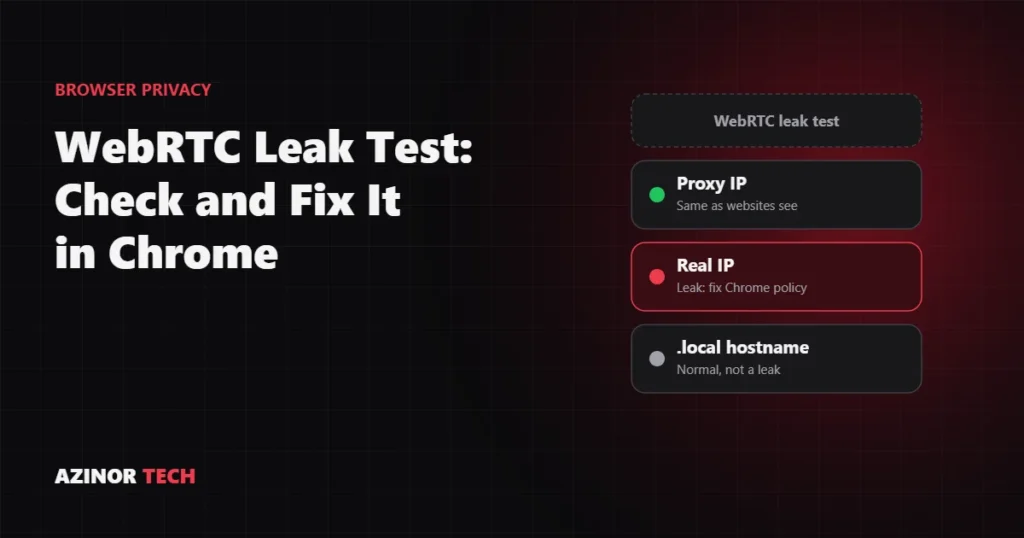
A WebRTC leak test checks whether your browser reveals an IP address that your VPN or proxy is supposed to hide. Run it twice in the same browser, once without and once with your VPN or proxy connected, and compare the public addresses. If your real public IP appears while you are connected, you have a WebRTC leak. A random name ending in .local is not a leak; it is how modern Chrome hides your local address.
This guide explains what the test actually measures, how to read each line of the result, and which fix fits a VPN app, a browser proxy extension or a managed work browser.
What is a WebRTC leak?
WebRTC is the browser technology behind video calls, screen sharing and peer-to-peer connections in web apps. To find the best connection path, the browser collects “ICE candidates”: the network addresses at which it can be reached. It asks a STUN server on the internet which public address it sees, and it can also report addresses from your local network. These candidates are available to the web page, so the page can learn more about your network than it would from a normal page load.
The IETF’s RFC 8828 describes three ways this can reveal more than you expect:
- Split routes: if your device can reach the internet through more than one route, for example a split-tunnel VPN, WebRTC can discover the public address of your normal internet connection as well as the VPN’s address.
- Local addresses: behind a home or office router, WebRTC can reveal private addresses such as 192.168.1.20.
- Proxies: if Chrome uses a proxy but direct internet access is still allowed, WebRTC’s STUN checks can bypass the proxy and reveal your real public IP.
The first and third cases are what people usually mean by a WebRTC leak: a website sees your real public IP address while you believe it only sees your VPN or proxy address.
How to run a WebRTC leak test
- Write down your real public IP. With your VPN or proxy turned off, open a WebRTC test page and note the public IPv4 and, if shown, IPv6 address.
- Connect your VPN or proxy. Wait until it reports that it is connected.
- Test in the same browser and profile. Reload the test page in the same Chrome profile you want to protect. Extensions run in Incognito windows only if you turn on “Allow in Incognito” for them, so test Incognito separately if you use it.
- Compare the public addresses. Every public address in the WebRTC section should belong to your VPN or proxy server, not to your internet provider.
- Repeat after changes. Test again after updating Chrome, installing another privacy or proxy extension, or switching networks.
Use any test page you trust; most show the same type of data. The test only tells you what the page could see at that moment. It does not prove that your whole setup is private.
How to read the result
| What the test shows while connected | What it means | Leak? |
|---|---|---|
| Public IP of your VPN or proxy server | WebRTC follows the same route as your web traffic | No |
| Your provider’s public IP (the one you noted in step 1) | WebRTC found a route around your VPN or proxy | Yes, fix it |
| A random hostname ending in .local | Chrome replaced your private address with an mDNS name | No |
| A private address such as 192.168.x.x or 10.x.x.x | The page can see your local network address | Minor: not your public IP, but extra fingerprinting data |
| No WebRTC addresses at all | WebRTC is restricted or blocked in this browser | No, but some video calls may not work |
| A public IPv6 address from your provider | IPv6 traffic is not covered by your VPN or proxy | Yes, fix it |
The .local line confuses many people. Chrome developers announced in 2019 that private IP addresses in WebRTC host candidates would be replaced by random mDNS hostnames such as 1f4712db-ea17-4bcf-a596-105139dfd8bf.local, specifically to stop pages from collecting local addresses (Chromium blink-dev announcement). Managed browsers can turn this off for selected sites, so a work browser may still show a private address.
Why VPN apps and browser proxies leak differently
A full-tunnel VPN app changes the device’s default route. WebRTC normally follows that route, so the STUN server sees the VPN address. Leaks usually come from split tunnelling, an IPv6 route that the VPN does not cover, or a moment when the VPN reconnects.
A browser proxy, which is what most “VPN” extensions are, only changes where Chrome sends web requests. WebRTC media normally uses UDP, and an HTTP proxy does not carry UDP. RFC 8828 explains that, by default, WebRTC traffic is not sent through proxy servers because of the quality problems that causes. Unless the extension also changes Chrome’s WebRTC setting, the STUN check can go straight out through your normal connection and reveal your real IP. For a fuller comparison, see browser VPN vs VPN app.
How to fix a WebRTC leak in Chrome
Chrome has no ordinary settings switch for this. The control is a WebRTC IP handling policy that an extension or an administrator can set. Chrome’s privacy API offers four values, which correspond to the modes in RFC 8828:
| Chrome value | What WebRTC may use | Privacy | Call quality |
|---|---|---|---|
| default | All network interfaces | Lowest | Best |
| default_public_and_private_interfaces | The default route plus its local address | Medium | Good |
| default_public_interface_only | The default route only, no local addresses | Higher | Usually fine; some paths may fail |
| disable_non_proxied_udp | Only the configured proxy; UDP only if the proxy supports it, otherwise TCP | Highest with a proxy | Can be noticeably worse |
Choose the fix that matches your setup:
- Browser proxy or VPN extension: the extension needs to set
disable_non_proxied_udpwhile it is connected. Check its description or settings for a WebRTC option, then run the test again. Only one extension can control a Chrome setting at a time, so two proxy or privacy extensions can override each other. - Full-tunnel VPN app: turn off split tunnelling for your browser, make sure the VPN covers IPv6 or that IPv6 is disabled while connected, and test again.
default_public_interface_onlyalso stops WebRTC from using a second route. - No VPN, but you want to hide local addresses: Google’s own WebRTC Network Limiter extension sets the same policy from an options page.
- Managed work browsers: administrators can set the
WebRtcIPHandlingenterprise policy instead of relying on users to install anything.
Avoid blocking WebRTC completely unless you never use browser video calls. RFC 8828 calls blunt solutions that disable WebRTC “undesirable”, and blocking it breaks real-time features in many web apps.
Worked example: a browser proxy before and after
This is an illustrative example, not a measurement of any product. A user in Italy installs a proxy extension with a server in Germany and runs the test:
| Line in the test | Before the fix | After the fix |
|---|---|---|
| IP address seen by websites | German proxy IP | German proxy IP |
| WebRTC public address | Italian provider IP | None, or the proxy IP |
| WebRTC local address | a1b2….local | None |
| Result | Leak: the real IP is visible | No public IP leak |
The normal page load already looked correct before the fix. Only the WebRTC section revealed the problem, which is why the test is worth running even when a simple “what is my IP” page shows the right country.
A quick checklist
- Test once without and once with your VPN or proxy, in the same profile.
- Any public address from your own provider while connected is a leak.
- A .local name is normal; a private 192.168 or 10.x address is minor.
- Check IPv6 as well as IPv4.
- Test Incognito separately if you use it.
- Retest after Chrome updates and after adding privacy extensions.
Frequently asked questions
Is a WebRTC leak dangerous?
It does not give anyone access to your device. It reveals your real public IP address, and possibly local addresses, to the websites you visit. That defeats the purpose of a VPN or proxy if you use one to hide your IP from websites.
Does Incognito mode stop WebRTC leaks?
No. Incognito does not change Chrome’s WebRTC behaviour. Extensions also run in Incognito only if you allow them, so a proxy extension that protects your normal windows may not apply there at all.
Should I disable WebRTC completely?
Usually not. Restricting how WebRTC chooses addresses fixes leaks while keeping video calls working in most cases. Blocking it completely breaks browser calls and other real-time features.
Does a VPN extension prevent WebRTC leaks?
Only if it sets Chrome’s WebRTC IP handling policy while connected. A browser proxy that does not change this setting can leave your real IP visible through WebRTC. Run the test to check.
Where AZINOR TECH stands
RedVPN for Chrome is a browser proxy, not a device-wide VPN. Its Chrome Web Store listing states that it sets Chrome’s WebRTC policy while connected so WebRTC does not use connections outside the proxy, and that only Chrome traffic is routed. Run the test above to check the result on your own setup. If you need device-wide coverage on a phone, the RedVPN Android app is a separate VPN app; its listing says it is in early access and may require an invite code.
Sources
- IETF, RFC 8828: WebRTC IP Address Handling Requirements (January 2021)
- Chrome for Developers, chrome.privacy API (IPHandlingPolicy values)
- Chromium blink-dev, PSA: Private IP addresses exposed by WebRTC changing to mDNS hostnames (2019)
- Chrome Web Store, WebRTC Network Limiter by Google
- Chrome Enterprise Help, Allow extensions in Incognito mode
Sources reviewed 17 November 2026. Chrome settings and test pages can change between versions.