
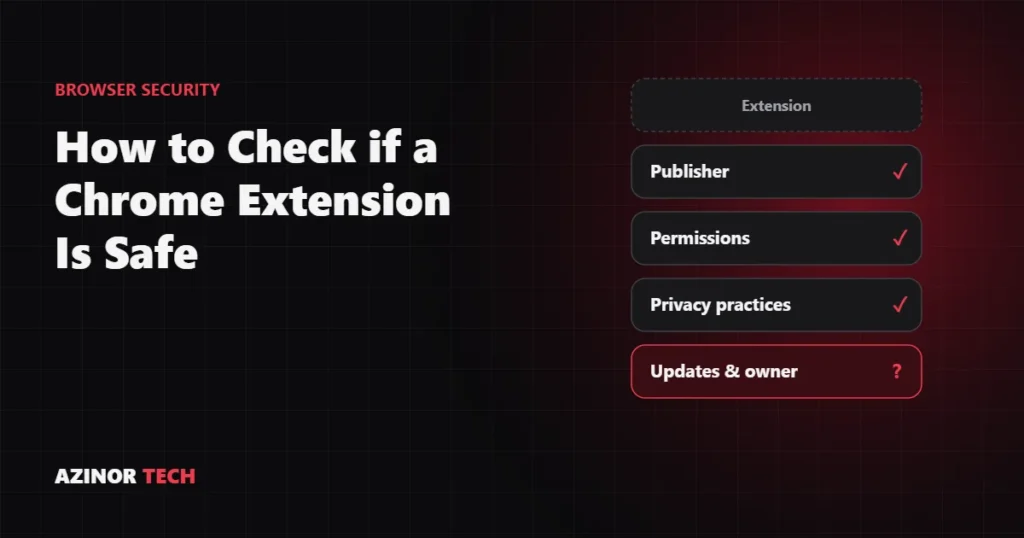
To check if a Chrome extension is safe, look at four things before you install it: who publishes it, whether the permissions it asks for match the job it does, what its privacy practices say about your data, and how recent reviews and updates look. After you install it, limit its site access and keep an eye on Chrome’s Safety check. No checklist can prove an extension is safe, but these steps remove most of the obvious risks in about ten minutes.
This guide explains what Chrome’s permission warnings actually mean, why a trusted extension can become harmful later, and what to do if you think one already has.
Why extensions deserve a closer look
An extension runs inside your browser, which is where you read email, pay bills and sign in to work tools. Depending on its permissions, it may be able to read and change the pages you visit.
Most extensions are not malicious. Google said in 2024 that less than 1% of all installs from the Chrome Web Store were found to include malware that year. The problem is that a small share of a very large number is still a lot of people, and the risk is not fixed at the moment you install:
- Hijacked developer accounts. In December 2024, attackers phished developers and pushed malicious versions of several extensions. The data-security company Cyberhaven’s extension was one of them; its compromised version 24.10.4 was live for about 31 hours, according to TechSpot’s report on the campaign.
- Extensions that change owners. In March 2026, researchers described two extensions that turned harmful after being sold. One had around 7,000 users; the other had earlier received a Featured badge, as reported by The Hacker News.
The lesson is not “never install extensions”. It is to install fewer, choose them carefully and keep checking the ones you keep.
Step 1: Check where it comes from and who publishes it
Install extensions from the Chrome Web Store unless your employer manages them for you. Google reviews store submissions with automated and human checks and says it removes and disables extensions that pose a severe risk. Extensions from elsewhere skip that process.
On the store listing, look at:
- The publisher name and contact details. Does it match a company or developer you can find elsewhere, with a real website and support address?
- The Established Publisher badge. Google’s Chrome Web Store discovery documentation says this badge is granted automatically to publishers whose identity has been verified and who have a consistent positive track record with Google’s policies.
- The Featured badge. Google awards it to extensions that follow technical best practices and meet a high standard of user experience and design.
Treat badges as signals, not guarantees. As the 2026 ownership case shows, a badge earned under one owner says little about what a new owner does next.
Step 2: Compare the permissions with the job
When you click Add to Chrome, Chrome shows a list of warnings for the more powerful permissions the extension requests. This is the most useful moment in the whole process. Ask one question: does this extension need that access to do what it says?
The wording comes from Chrome itself. Google’s permissions reference lists the warning attached to each permission. Some common ones:
| Warning you see | What it allows | Expected for | Questionable for |
|---|---|---|---|
| Read and change all your data on all websites | Access to the content of every site you open, or control of Chrome’s proxy settings | Ad blockers, password managers, translators, browser proxies | A colour picker, a new-tab wallpaper, a simple timer |
| Read and change your browsing history on all signed-in devices | Viewing and editing history across synced devices | History search and cleanup tools | Almost anything else |
| Manage your apps, extensions, and themes | Seeing and controlling your other extensions | Extension managers | Any tool unrelated to managing extensions |
| Know your email address | Reading the email address of your Chrome profile | Tools that sign you in with Google | Tools that do not need an account |
Two details help when you read these lists:
- No warning does not mean no access. Some permissions show no warning, and some warnings are hidden when a broader one already covers them. For example, Chrome’s permission warning guidelines say the “tabs” warning will not appear if the extension also requests access to all URLs.
- Narrow is a good sign. Extensions that only act when you click them can use a permission called activeTab, which gives temporary access to the current site and shows no warning. A developer who asks for only what the feature needs is showing care.
Step 3: Read the privacy practices
Store listings include a privacy section in which the developer declares what user data the extension handles and how. Read it alongside the extension’s own privacy policy.
- What data does it collect: browsing activity, page content, personal details, location?
- Why does it need that data, and is that reason connected to the feature you want?
- Is any data sold or shared with third parties?
- How long is it kept, and how can you ask for it to be deleted?
Missing or vague answers are a reason to choose another option. Google’s own advice is to compare an extension’s stated goal with the permissions it requests and the privacy practices it publishes.
Step 4: Check reviews, update history and recent changes
Sort reviews by most recent rather than most helpful. Older praise can describe a different owner or a different version.
- Warning signs in recent reviews: new ads, search results changing, pages redirecting, unexpected pop-ups or “it started asking for new permissions”.
- The “Updated” date. An extension that has not been updated for years may stop working as Chrome changes. A sudden update after a long silence is worth a second look.
- Publisher changes. If the developer name, website or support address has changed recently, be more cautious.
- Pressure to install. Be wary of websites that push you to install an extension quickly, especially one unrelated to what you were doing.
Step 5: Limit what it can reach after you install it
Chrome lets you decide where an extension can read and change site data. Open the extension’s Details page from Manage extensions, or use the Extensions menu next to the address bar. Google’s help page on installing and managing extensions describes the options:
- When you select the extension (shown as “On select” on the Details page): access only while you use it on the current site.
- On specific sites: access only on the sites you list.
- On all sites: access everywhere. Keep this for tools that genuinely need it.
Some extensions cannot do their job without broad access. A browser proxy, for example, needs control of Chrome’s proxy settings for every site. In that case the publisher, privacy practices and update history matter even more.
Finally, remove extensions you no longer use. Every installed extension is something that can change through an update.
Step 6: Keep watching after installation
Chrome includes some protection that works in the background:
- Safety check on the Extensions page. Since Chrome 117, according to Google’s announcement, Chrome flags installed extensions that were unpublished by their developer, removed from the store for breaking its rules, or marked as malware. Malware is disabled automatically; for the others, you choose whether to remove or keep them.
- New permissions pause the extension. If an update adds a permission that triggers a warning, Chrome disables the extension until you accept. Treat that prompt as a reason to repeat Step 2, not as a box to click.
- Enhanced protection. Turning on Enhanced protection in Chrome’s Safe Browsing settings adds extra checks. When an extension is not trusted by it, Chrome shows a warning before installation.
One limitation matters: an update that does not request new permissions can still change what an extension does, without any prompt. That is why the number of extensions you keep, and who publishes them, matters more than any one-time check.
Worked example: choosing between two PDF tools
Hypothetical example for illustration; the extensions described are invented.
You want to convert web pages to PDF. Two extensions look similar:
| Check | Extension A | Extension B |
|---|---|---|
| Publisher | Established Publisher badge, company website and support email | No badge, publisher name only |
| Permission warnings | None at install; works when you click it | Read and change all your data on all websites; read and change your browsing history |
| Privacy practices | Declares no data collection | Collects “website content” and “web history” |
| Recent reviews | Mixed opinions about features | Several recent reports of new ads on search pages |
| Decision | Reasonable to try | Skip |
A PDF tool needs the page you are on at the moment you click it. It has no clear reason to read your history or every site you visit, so Extension B fails Step 2 before you even reach the reviews.
A quick checklist before you click “Add to Chrome”
- It is from the Chrome Web Store, or approved by your employer.
- You can identify the publisher and contact them.
- Every permission warning makes sense for the feature you want.
- The privacy practices are specific, and data is not sold.
- Recent reviews do not mention ads, redirects or sudden changes.
- You know which site access setting you will choose after installing.
- You actually need it, and you will remove it when you stop using it.
If you think an extension is already causing problems
- Remove it from Manage extensions, or right-click its icon and choose Remove from Chrome.
- Run Chrome’s Safety check and review the other extensions it lists.
- Change passwords for important accounts you used while it was installed, starting with email and banking, and turn on two-step verification where available.
- Sign out of other sessions in those accounts if the service allows it.
- Scan your computer with reputable security software.
- If it is a work device, tell your IT contact straight away.
Frequently asked questions
Are Chrome extensions safe to use?
Most are, and Google reviews extensions before and after publication. But an extension’s behaviour can change through updates or a change of owner, so choose carefully, limit site access and remove what you no longer use.
Does Google check extensions in the Chrome Web Store?
Yes. Google describes automated and human review before publication, ongoing monitoring afterwards, and removal and disabling of extensions that pose a severe risk. Review reduces risk but cannot catch everything.
What does “Read and change all your data on all websites” mean?
It means the extension can access the content of the sites you visit, or control Chrome’s proxy settings. It is normal for tools such as ad blockers, password managers and browser proxies, but a warning sign for simple tools that have no reason to see every page.
Can a safe extension become unsafe later?
Yes. Developer accounts can be hijacked and extensions can be sold to new owners who push harmful updates. Chrome asks you again only when an update adds a permission that triggers a warning.
Where AZINOR TECH stands
AZINOR TECH publishes a Chrome extension, RedVPN for Chrome, a browser proxy. Because it controls Chrome’s proxy settings, Chrome shows a broad permission warning for it, and you should apply this checklist to it as you would to any other extension. Its privacy policy explains what it processes. For what a browser-only tool does and does not cover, see browser VPN vs VPN app.
Sources
- Google Security Blog, Staying safe with Chrome extensions (June 2024)
- Chrome for Developers, Permissions list and Permission warning guidelines
- Chrome for Developers, Discovery on the Chrome Web Store (badges)
- Chrome for Developers, Bringing Safety check to the chrome://extensions page
- Chrome Web Store Help, Install and manage extensions
- TechSpot, report on the December 2024 extension compromises
- The Hacker News, Chrome extensions turn malicious after ownership transfer (March 2026)
Sources reviewed 10 November 2026. Chrome menus and wording can change between versions.